How to Add a Vocabulary Widget to Your iPhone Home Screen and Lock Screen
Learn a new word every day
Free on iOS & Android

Add a Vocabulary widget to your iPhone Home Screen and Lock Screen, choose its size, topic and refresh rate, and see a new word every time you check your phone.

To add a vocabulary widget on iPhone, press and hold an empty spot on your Home Screen, tap the + button, search for Vocabulary and add the size you want. For the Lock Screen, press and hold the lock screen itself, tap Customize and add the Vocabulary widget. A new word then appears every time you glance at your phone.
This guide covers both placements, how to choose what the widget shows, and what to expect on Android. You need the free Vocabulary app, opened once, and iOS 14 or later for the Home Screen (iOS 16 or later for the Lock Screen).
Home Screen or Lock Screen: which word widget should you use?
The Home Screen widget comes in small, medium and large sizes. Small suits a single word and its meaning; medium and large have more room for the definition, and can show like and share buttons so you can save a word or send it to a friend without opening the app. Small widgets do not have buttons.
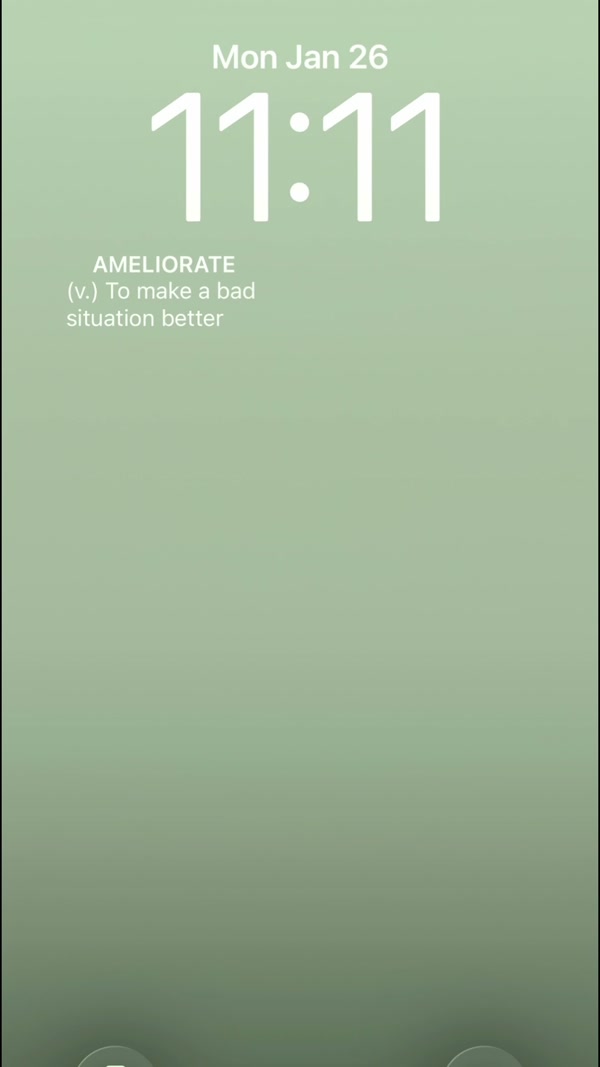
The Lock Screen widget is smaller: a rectangular format with room for a word and a short line, and a compact circular or line format. It needs iOS 16 or later. Use it for the glance-and-learn moment every time you pick up your phone, and the Home Screen widget for a fuller definition.
Is there a vocabulary widget for Android?
On the Home Screen, yes: Android supports the Vocabulary widget in small, medium and large sizes. There is no Lock Screen widget on Android, because Android has no standard way for apps to place widgets there. Inside the app you may see a Lock Screen widget card, which is a shortcut to add the Home Screen widget and disappears once you have placed one.

How to add a vocabulary widget on iPhone, step by step
1. Install the Vocabulary app and open it once
Open the app once after installing so it can prepare your words. The widget will not show a word until you have done this.
2. Press and hold an empty spot on your Home Screen
Hold until the icons start to wiggle, then tap the + button in the top corner to open the widget gallery.
3. Search for Vocabulary and pick a size
Type Vocabulary in the search field, then swipe between the small, medium and large sizes. Tap Add Widget and drag it where you want it.
4. Choose what the widget shows
In the app open your Profile and go to Widget settings. You can set the topic, text size, how often the word changes, a theme and an optional border, and turn the like and share buttons on or off.
5. Add the Lock Screen widget (iOS 16 or later)
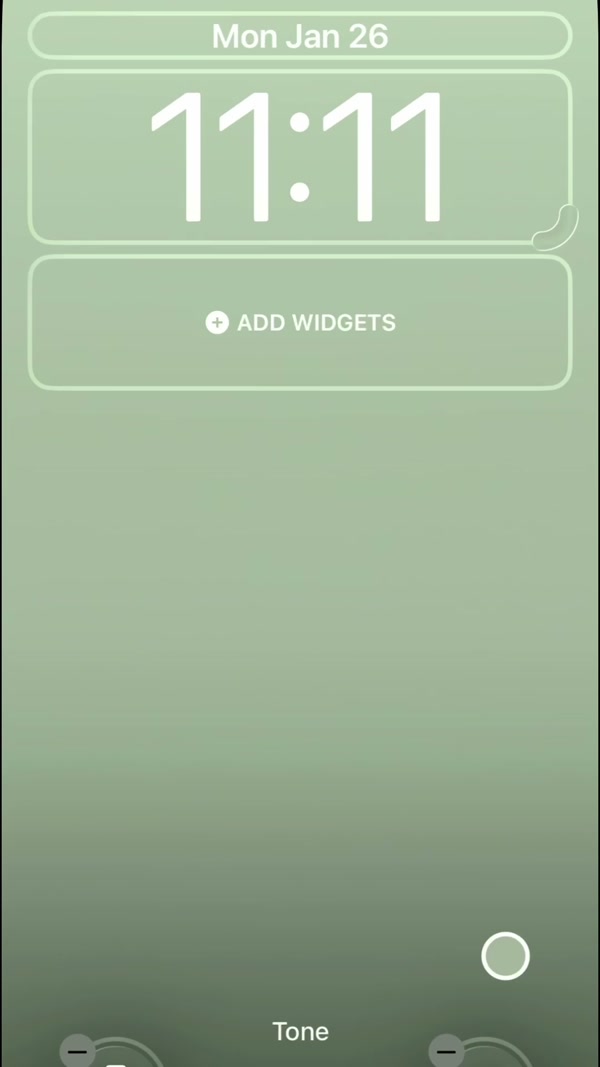
Press and hold your Lock Screen, tap Customize, choose the Lock Screen, tap the widget area under the clock and add Vocabulary in the rectangular or compact format.


6. Pick how often the word changes
Refresh options run from never and twice a day up to every few minutes. Pick a slower rate if you want one word to sink in, and a faster one if you want a stream of new words. Changing the refresh frequency and theme is part of the premium customization.
7. Tap a word to learn more
Tapping the widget opens the app on that word. From there you can listen to the pronunciation or, with premium, open the word details with examples, synonyms and etymology.
Frequently asked questions
Why does the Vocabulary widget show no word?
Open the app once after installing, then go back to your Home Screen. If the widget still looks empty, remove it and add it again from the widget gallery.
Can I get a word of the day widget for free?
Yes. The widget with basic customization is part of the free app. Premium adds advanced widget customization such as themes, borders and refresh frequency, plus word details and every category.
Does the Lock Screen widget work on older iPhones?
It needs iOS 16 or later. On earlier versions you can still use the Home Screen widget, which works from iOS 14.
Can I have more than one vocabulary widget?
Yes. You can place several widgets and give each its own name, topic and look, for example a word widget on one page and a quiz widget on another.
